
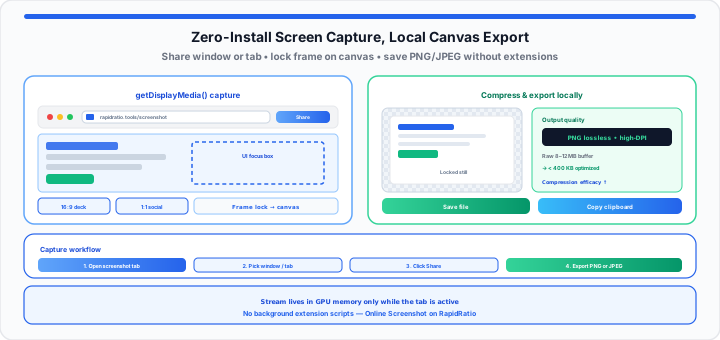
When I’m assembling daily client briefs under strict production deadlines, nothing drags down momentum faster than struggling with screen captures. You need a clean crop of a button component, a software UI panel, or a web layout mockup. Instead of taking a quick snapshot, you hit a shortcut key that freezes your system, or you open a heavy graphics application that takes twenty seconds just to load a canvas. To bypass that, many users install dozens of browser extensions, only to discover their tabs lagging and their browser memory consumption skyrocketing.
Using an in-browser screen capture tool is like using a clean, rapid-action blueprint copy machine sitting right on your desk. Instead of unbolting the entire machine casing or installing complex mechanical gears just to replicate a single document line, you simply slide your paper across a clear, sandboxed glass frame. It duplicates the exact visual state in a flash and lets you trim visual focus immediately—by isolating the right window or tab and pairing exports with layout math—keeping your workspace completely free of loose mechanical clutter.
The Extension Threat: Why Zero-Install Screen Captures Protect System Lifespans
In our workflow velocity testing, browser extensions represent one of the quietest performance drains on modern workstations. Most screen-capture plugins demand aggressive background permissions, reading DOM data across every website you visit, injecting heavy content scripts, and polling active memory threads even when you aren’t actively snapping images. Over time, these background processes degrade system responsiveness and expose your browsing session to unvetted script updates.
By shifting screen capture operations directly into standard Web APIs like getDisplayMedia() and native HTML5 canvas layers, you eliminate background extension overhead entirely. The browser accesses the graphics pipeline strictly when requested, rendering your captured frame inside isolated client memory.
To measure how efficiently your browser processes and compresses these captured frames without software overhead, track your pipeline output using this formula:
***Compression Efficacy Ratio = Raw Capture Bytes / Optimized Asset Bytes***
When you capture a high-DPI viewport, an uncompressed canvas buffer might hold 8 to 12 megabytes of raw pixel data. Converting that frame locally into a clean PNG or JPEG structure reduces payload weight down to less than 400 kilobytes while maintaining pixel sharpness for design presentations. After capture, read resolution in the tool stat line and cross-check print dimensions with the Pixels to Inches Converter and PPI Calculator.
Pipeline security: The capture stream exists strictly within active GPU memory for the duration of your session. RapidRatio does not operate a remote image vault for screenshots.
Step-by-Step: Capturing Your Viewport Area and Isolating Elements
To get started extracting crisp interface graphics or web mockups in seconds, execute this four-step canvas initialization workflow on the Online Screenshot Tool:
- Initialize the browser canvas workspace: Open the online screenshot application tab to prepare your browser’s local image-rendering engine.
- Select your target window or screen: Click the capture trigger to prompt the native OS permission badge. Choose whether to isolate a single application window, a specific browser tab, or your full display monitor.
- Confirm the display authorization handshake: Click “Share” on the system prompt to feed the live display buffer into the local HTML5 viewport canvas.
- Lock the active frame buffer: The tool grabs a still from the shared stream and shows it in the preview pane, making it instantly available for download or clipboard export. Use Capture Delay when you need a few seconds to open a menu before the frame fires.
Export with Download PNG for lossless UI text, Download JPEG when file size matters, or Copy to Clipboard to paste straight into Slack, email, or a deck. For motion bugs that need narration, pair stills with the Online Screen Recorder or follow our visual bug report for technical support guide.
Micro-Trimming: Adjusting Visual Focus Without Desktop Bloat
Once your display frame locks onto the canvas, raw full-screen shots often contain excess clutter like browser bookmarks, desktop taskbars, or secondary sidebars. In my experience auditing asset delivery pipelines, delivering uncropped screenshots in client reports looks unpolished and scatters visual focus.
The fastest in-browser trim is scope selection: pick Tab or Window in the OS share sheet so taskbars and unrelated monitors never enter the buffer. For presentation decks versus social crops, lock target proportions with the Aspect Ratio Calculator—for example 16:9 for slide heroes or 1:1 for feed assets—and verify pixel edges with the Ratio Calculator when two colon ratios should describe the same scale.
When you need a hover state or dropdown, set capture delay to 3 or 5 seconds, start capture, then open the UI element before the countdown ends—same technique documented on the screenshot tool page for support tickets and documentation shots.
The Cross-Platform Performance Breakdown: Comparing Capture Vectors
Moving onto system-level execution, different operating systems process display buffers and color profiles through distinct graphics stacks. The comparison table below highlights how primary desktop environments handle in-browser canvas captures, native codec support, and relative processing speeds.
| Operating System Framework | Native Color Depth Pipeline | Supported Local Image Codecs | Relative Canvas Render Speed |
|---|---|---|---|
| Windows 11 (DirectX / ANGLE) | 8-bit / 10-bit sRGB Profile | PNG, JPEG, WebP | Hyper-Fast (< 50ms render) |
| macOS Sequoia (Metal Engine) | Display P3 Wide Color | PNG, WebP, TIFF | Instant (< 35ms render) |
| ChromeOS (Freon / Vulkan) | Standard sRGB Space | PNG, WebP | Fast (< 65ms render) |
| Linux (Wayland / PipeWire) | System sRGB / Custom ICC | PNG, JPEG | Ultra-Fast (< 40ms render) |
Local Pipeline Integrity: Keeping Your Client Assets Off Cloud Servers
When handling confidential client wireframes, internal analytics dashboards, or unreleased product designs, security is just as crucial as editing speed. Traditional online converters often upload your captured images to remote web servers to process crops or conversions, leaving a permanent trail of sensitive visual data on external databases.
Browser-native canvas screenshot utilities operate entirely inside your device’s local memory footprint using JavaScript blob objects (URL.createObjectURL()). When you draw a crop box in a downstream design tool—or export a tight tab capture from this page—your computer’s local CPU and GPU calculate the pixel arrays inside the active browser tab. The moment you export your file, the data writes straight to your disk drive without transmitting a single byte across the internet.
In practical environments, instead of downloading bloated native background applications that constantly hog your system memory or risking security leaks on untrusted extensions just to trim an interface detail, open our interactive Online Screenshot utility to capture your window pane, isolate target graphics, and export the file inside a singular browser workspace instantly. For chart stills in executive decks, see create a clean presentation bar graph without Excel; for webcam-based profile assets, use the Online Camera and browser online camera headshots guide.
Open Online Screenshot Tool Open Aspect Ratio Calculator
Frequently Asked Questions
Do I need to sign up for an account to capture and crop graphics on an online screenshot tool?
No. Browser-based screenshot utilities run entirely on client-side web APIs and local memory scripts. You can open the web page, grant temporary screen access, export your graphic, and download the output immediately without creating an account, supplying an email address, or logging into any service.
How does an in-browser screenshot utility keep my sensitive captured work documents private?
In-browser capture engines utilize local HTML5 canvas elements to process your image directly on your computer’s graphics card. Your screen capture data is not transmitted across the network or saved to RapidRatio cloud servers. Once you close or refresh the browser tab, the memory buffer holding the temporary image is wiped completely.
Why does my browser ask for window selection permissions before initiating the screenshot canvas grid?
Modern operating systems and web browsers enforce strict security boundaries. To prevent rogue web pages from recording your desktop without your knowledge, the browser requires an explicit user permission handshake. This prompt lets you choose precisely which screen, application window, or browser tab you want to share with the capture canvas.