
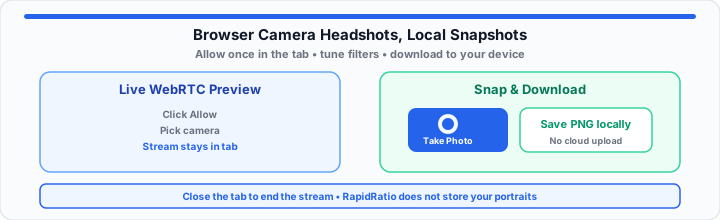
You need a clean headshot for a remote job application, an updated corporate profile, or a rapid video thumbnail, and you need it right now. You open your computer’s built-in camera utility only to find bloated system updates, clunky menus, or low resolution settings that leave your face looking grainy. Downloading a 500-megabyte desktop editing suite feels like overkill when you just need one crisp photo. Worse yet, visiting an unfamiliar web site often triggers privacy hesitation: is this page secretly recording your stream or storing your photo on a distant cloud server?
In our media pipeline testing, accessing your camera through a modern web browser is actually far more controlled than installing unknown desktop binaries. Think of browser-level hardware permissions like a physical security checkpoint at an office lobby. The browser acts as a strict guard standing before a locked glass door, holding a clipboard; it requires you to sign a temporary visitor’s pass before it will hand over the physical video stream cable to the page. Once you close that specific tab, the guard pulls the cord, cutting the line instantly.
The WebRTC Sandbox: Why Web-Based Video Channels Keep Your Hardware Private
When I am auditing webcam capture rates and web security protocols, the biggest misconception I encounter is that browser-based cameras are inherently leaky. In reality, modern web browsers utilize a heavily restricted framework called WebRTC (Web Real-Time Communication) to handle video streams. Your raw hardware feed is processed inside a sandboxed memory segment on your local graphics pipeline.
This architecture prevents the web page from directly reading arbitrary files from your system storage. Instead, the browser exposes a temporary media stream that exists while the active tab remains open and permission stays granted.
To evaluate your target image resolution and sensor output scaling, you can calculate your viewport geometry using these ratios:
***Target Aspect Ratio = Active Frame Width / Active Frame Height***
***Viewport Pixel Yield = Active Width Pixel Count × Active Height Pixel Count***
When your browser streams video into an HTML5 video element, it scales this pixel yield dynamically based on display constraints. Cross-check framing with the Aspect Ratio Calculator or translate pixel counts to print size with the Pixels to Inches Converter and PPI Calculator before you crop for LinkedIn or résumé PDFs.
Data isolation: Closing the browser tab ends the media stream for that session. RapidRatio does not operate a cloud vault for your portraits—snapshots download from local canvas memory when you click save.
Step-by-Step: Initializing Your Lens and Granting Device Access
To get started capturing a professional portrait using an in-browser utility, follow these four procedural steps to establish a clean media line and frame your shot:
- Launch the web application canvas: Open the Online Camera in your primary browser window over HTTPS to trigger hardware detection.
- Authorize the browser security prompt: Click “Allow” on the pop-up shield near your address bar to grant the temporary WebRTC media pass.
- Select your primary video input device: If your workstation features multiple lenses (integrated laptop camera and external USB desk camera), use the device dropdown to route the desired HD sensor line. If the feed stays black, walk through the fix blurry or inactive webcam in browser settings guide or run the Webcam Test first.
- Frame and align your portrait axis: Position your head in the center third of the live preview block, keeping your eyes aligned with the upper horizontal grid line for balanced posture.
Click Take Photo to freeze the current frame—including any active filters—then Download Image from the preview overlay. Use Pause to hold a stable pose check and Fullscreen when you need a larger framing view on a wall-mounted monitor.
Dialing in Tone: Overcoming Bad Lighting with Live Filter Sliders
In practical environments, poor ambient lighting causes more ruined headshots than low lens resolution. A bright window sitting directly behind your chair turns your face into a dark shadow, while harsh overhead desk lamps can bleach skin tones under intense hot spots.
When I am troubleshooting canvas rendering or optimizing portrait feeds, adjusting live filters before hitting the shutter button solves exposure flaws instantly. On the RapidRatio Online Camera, CSS filter sliders apply to both preview and saved stills:
- Contrast balance: Raise contrast slightly above ***100%*** to deepen background separation and sharpen facial edges against plain office walls.
- Saturation adjustment: Dial saturation down if fluorescent fixtures cast an artificial warm tint; nudge up modestly if the feed looks flat and gray.
- Sepia or invert (optional): Use sparingly for stylized thumbnails—not typical corporate headshots—then reset filters before a formal application photo.
- Blur (background softening): A light blur can hide cluttered shelves behind you; keep values low so eyes and ID text stay readable.
The Web Compatibility Scoreboard: Testing Your System Output
Moving onto hardware performance, different desktop engines handle camera pass-through permissions and resolution ceilings differently. The reference table below tracks standard browser configurations, default security behaviors, and typical web snapshot limits—actual max resolution still depends on your camera hardware and OS drivers.
| Browser Engine | Default Permission Security Gate | Typical Web Snapshot Ceiling | Hardware Acceleration State |
|---|---|---|---|
| Google Chrome (Chromium) | Pop-up badge near address lock icon | Up to 3840 × 2160 (4K UHD) when camera supports it | Active by default (GPU canvas pipeline) |
| Mozilla Firefox (Gecko) | Dropdown overlay with device picker | Often up to 1920 × 1080 (1080p HD) | Active (DirectX / OpenGL render layer) |
| Apple Safari (WebKit) | Top banner prompt per domain visit | Often up to 1920 × 1080 (1080p HD) | Active (Metal API acceleration) |
| Microsoft Edge (Chromium) | Address bar security badge | Up to 3840 × 2160 (4K UHD) when camera supports it | Active by default (GPU canvas pipeline) |
The Snapshot Save: How Canvas Downloads Stay Local
A major concern for remote job candidates is whether taking a photo online sends personal image files across public servers. Client-side camera tools freeze the current video frame on an HTML5 canvas and encode pixels into a downloadable blob in system RAM. Clicking download writes the picture into your local Downloads folder through a browser-initiated file save—RapidRatio does not receive that binary payload.
Moving onto quick asset creation, instead of downloading bloated native software suites that hog system memory or risking unknown upload portals just to take a quick headshot, open the Online Camera to adjust contrast and saturation, capture your frame, and save the portrait in a few seconds. For screen-based profile banners, pair stills with the Online Screenshot tool; for video intros, see the Online Screen Recorder.
Open Online Camera Open Webcam Test
Frequently Asked Questions
What should I do if my browser completely blocks the online webcam permission prompt?
If you accidentally clicked “Block” or your browser suppressed the permission prompt, look at the left side of your address bar near the lock icon. Click the site settings badge, locate the “Camera” entry, and change the dropdown setting back to “Allow” or “Ask.” Reload the page to trigger a fresh media stream request. Confirm macOS or Windows privacy settings also allow camera access for your browser.
Are the photos I snap using an in-browser camera tool uploaded to an external web server?
RapidRatio does not upload or store your video or snapshots. Capture and download run locally through canvas encoding in your browser tab. Your image saves to your device unless you manually share it elsewhere.
How do I change the input choice from my front-facing screen lens to an external USB webcam on a web utility?
When multiple video sources are connected, the tool reads device IDs via the browser’s MediaDevices API. Use the camera selector dropdown on the Online Camera page to switch between integrated laptop lenses and external USB webcams. If the external camera does not appear, ensure its drivers are recognized by your operating system before opening the browser tab.