
A remote operator spent three days emailing our helpdesk desk. They tried describing a flickering browser button loop in writing. The endless ticket ping-pong stalled workspace productivity targets completely. When I review malformed system logs at the desk, text fails. Written text cannot convey complex dynamic web browser interactions accurately. Misunderstandings between remote staff and helpdesk personnel waste valuable time.
Typing a bug description resembles diagnosing a broken engine sound. Writing text is like sending a postcard describing engine rattles. A quick browser video hands the mechanic a clear clip. The mechanic spots the smoking belt and broken pulley instantly. Think of a browser-native recording as a digital mirror. It is an active evidence file isolating hidden software exceptions. Visual evidence speeds up system error diagnosis across engineering departments. Clear video captures save hours of unproductive troubleshooting meetings every week. To get started, evaluate your active viewport replication setup now.
The Visual Replication Baseline
Display Capture Constraints and Frame Rates
Active browser viewports hold crucial diagnostic state data for engineers. Text descriptions lose exact mouse coordinates and DOM rendering states. In our ticketing tests, missing visual context delays tier-three resolution. Browser streams capture exact visual artifacts during user interaction cycles. Engineers inspect rendering bugs, alignment shifts, and dynamic script failures. Visual bug tracking provides immediate context for remote development teams. Non-technical operators record errors without learning complex software debugging tools. Capturing actual browser behavior eliminates guesswork during technical issue analysis. Remote teams resolve customer issues faster when visual proof exists.
Calculated video capture rules dictate visual evidence file payload sizes. The frame calculation formula reads:
Frame Burden = Resolution × Frame Rate
Lower frame rates reduce raw file sizes for helpdesk attachments. A thirty frames per second stream captures fast interface glitches. Ten frames per second suffices for simple static form errors. Optimizing frame settings balances video clarity with network transfer speed. Small video files upload quickly across slow remote internet connections. Proper resolution choices prevent ticketing server storage overload over time. Efficient stream recording preserves bandwidth across busy corporate networks easily.
Support staff must simulate your error replication with our zero-install Online Screen Recorder today. Operators can verify your browser video parameters instantly before ticket submission. Clean stream capture isolates client render bugs from backend databases. Isolating viewports prevents unnecessary server infrastructure debugging sessions by engineers. Visual replication eliminates vague back-and-forth email loops entirely. System administrators save valuable engineering hours by requiring video attachments. Clear visual evidence ensures faster software bug fixes across updates. Standardized video submission guidelines improve helpdesk triage efficiency across organizations.
The Resource Overhead Variable
Permission Security Flags and Installation Friction
Forcing staff to download desktop software triggers immediate security blocks. Corporate IT environments restrict non-admin executable software installations by default. Heavy local installers consume computing resources and introduce malware risks. Non-technical operators struggle with complex desktop video recording configurations. Installation friction delays critical vulnerability reporting across enterprise teams. Unapproved software installation attempts violate strict enterprise security policies frequently. Employees lose focus when forced to navigate complex software installers. Desktop screen recorders often require expensive individual software licensing packages.
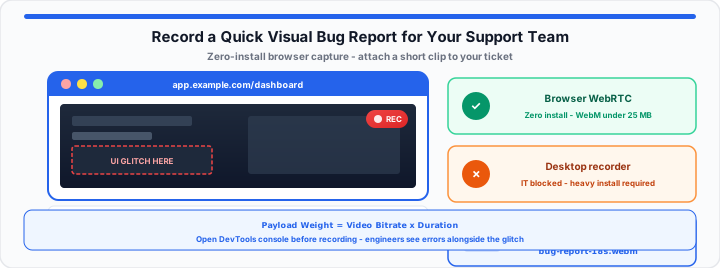
Browser-native recording bypasses local machine software installation requirements completely. WebRTC sandboxing operates safely within existing browser permission boundaries. Users grant temporary screen access without altering operating system files. Zero-install tools keep corporate endpoints secure and fully compliant. In my production support experience, zero-install tools improve ticket velocity. Moving onto workspace metrics, browser tools streamline diagnostic reporting workflows. Lightweight web solutions run smoothly on low-spec remote workstation hardware. Web-based screen capture works seamlessly across modern desktop operating systems.
Team members should map out your interface recording using this free Online Screen Recorder now. Helpdesk managers must test your custom capture variables with the Online Screenshot Tool across departments. Eliminating desktop downloads accelerates incident resolution speed significantly online. Streamlined browser utilities reduce helpdesk ticket creation time drastically. Remote employees generate clean visual reports in seconds without frustration. Standardized web tools ensure consistent recording quality across all departments.
| Diagnostic Method | Deployment Speed | Friction for Non-Tech Staff | Risk of Security Policy Blocks |
|---|---|---|---|
| Text-Only Descriptions | Instant (0 minutes setup) | Extremely High (Vague, ambiguous text) | None (Standard text ticketing input) |
| Heavy Desktop Software | Slow (15–30 minutes install) | High (Requires local admin privileges) | High (Triggers corporate security alerts) |
| Zero-Install Web Capture | Instant (0 minutes install) | Minimal (Single click in browser) | Zero (Runs inside WebRTC browser sandbox) |
The Production Pipeline Escalation Protocol
Canvas Rendering Thresholds and Console Log Correlation
In my production support experience, visual clips solve complex tickets. Pairing video streams with open developer console logs speeds debugging. Engineers see JavaScript exceptions alongside visual interface rendering failures. In practical environments, combined data captures eliminate tier-one helpdesk triage. Direct escalation to engineering teams requires complete context packages. Detailed visual bug reports contain all necessary information for developers. Capturing console network requests helps engineers diagnose broken API endpoints. Recording DOM inspection trees clarifies complex CSS layout rendering conflicts.
File size optimization equation reads:
Total Payload Weight = Video Bitrate × Duration
Managing video bitrate prevents ticketing system attachment size limit breaches. Short fifteen-second recordings provide maximum visual clarity with minimal bandwidth. Optimizing recording length keeps video attachments light and fast loading. Compact video files process faster inside automated helpdesk management pipelines. We list essential diagnostic capture metrics and recording parameters below.
- Target Video Resolution: 1080p full display or active window bounds.
- Optimal Frame Rate: 15 to 30 frames per second.
- Audio Capture Status: Optional microphone voiceover for context.
- WebRTC Container Format: WebM or MP4 video container encoding.
- Average Video Bitrate: 1.5 to 2.5 Mbps streaming speed.
- Maximum File Size: Under 25 megabytes for email attachments.
Capturing clear video evidence empowers tier-two specialists to act immediately. Developers reproduce reported software bugs in local testing environments quickly. Visual bug reports bridge communication gaps between non-technical staff and developers. System administrators maintain higher overall application uptime using video ticketing. Efficient bug reporting pipelines keep software development projects on schedule. Clear visual communication transforms remote IT infrastructure support operations completely. For static error dialogs that do not need motion, use the Online Screenshot Tool. Add voice context with the Voice Recorder, then draft ticket text in the Online Notepad. For CMS paste cleanup after copying error messages, see how to strip rich text formatting from messy copy-paste data.
Open Online Screen Recorder Open Online Screenshot Tool
Frequently Asked Questions
How do I record my screen for IT support?
Use an online browser screen recorder to capture your screen. Attach the clean video file directly to your support ticket.
Why use an online recorder instead of software?
Online recorders require zero software downloads and bypass admin restrictions. They generate lightweight video files instantly within browser security sandboxes.
Does screen recording include developer console logs?
Opening developer tools allows the recorder to capture console errors. Engineers view visual glitches and code exceptions side by side.
What is the ideal video length for support tickets?
Keep visual bug recordings between ten and thirty seconds long. Short clips isolate specific errors while maintaining small file sizes.