
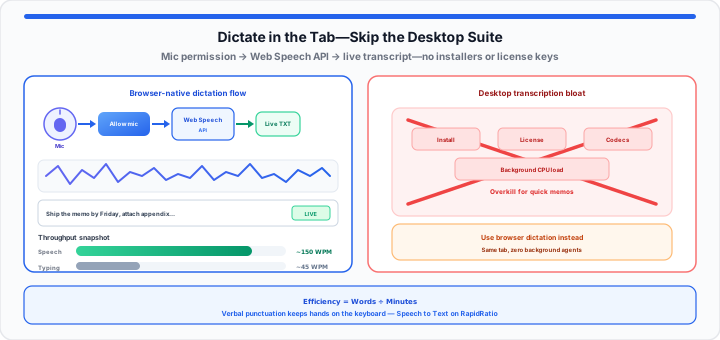
We have all felt the physical exhaustion of sitting in front of a flickering monitor at 6:00 PM with three hours of recorded interviews, lectures, or meeting notes to transcribe. Your wrists ache, your fingers cramp across the keyboard, and you constantly pause and rewind five-second audio clips just to catch a single missed technical phrase.
When I am drafting long-form content by voice or converting raw audio notes into text blocks, relying on traditional typing is an agonizing bottleneck. Heavy, downloadable desktop transcription software operates like an over-engineered stenograph machine—it demands a specialized desk setup, custom key bindings, system-heavy audio codecs, and an expensive annual license fee just to type out a basic memo. A browser-native speech engine acts like a clean, open notepad with a smart pen resting on it. You speak naturally, and the ink flows instantly across the screen without software setup gates, installation delays, or user account hurdles.
Eliminating Desktop Bloat: Why Browser-Native Transcription Wins
In my experience auditing browser audio pipelines, relying on thick client applications to transcribe basic audio files wastes system resources. Heavy desktop tools consume gigabytes of local storage, force system driver reboots, and run background processes that drain your laptop battery while you work.
Running your dictation directly inside a modern web tab routes your voice through optimized HTML5 audio streams and native browser Web Speech engines. This structure processes vocal frequencies with a near-zero memory footprint on your machine compared with always-on desktop suites.
To evaluate how much time voice transcription saves compared to manual keyboard input, track your output using this efficiency calculation:
***Dictation Efficiency Ratio = Total Words Produced / Total Minutes Elapsed***
Average manual typing speeds hover between ***40*** and ***50*** words per minute. In our dictation speed tests, clear spoken input through a browser widget delivers between ***130*** and ***160*** words per minute. That means adopting voice-to-text workflows can triple your daily drafting speed while reducing physical wrist strain. Quantify your own sessions with the Words Per Minute Calculator after you export a transcript from the Speech to Text tool.
Step-by-Step: Activating the RapidRatio Speech to Text Tool
To get started dictating instantly without downloading third-party software, configuring external drivers, or creating user accounts, follow these four procedural steps:
- Set your primary microphone hardware: Connect your headset or USB desktop microphone and select it as your system default input source inside your computer’s sound panel.
- Authorize browser microphone permissions: When you click the active listening toggle for the first time, your browser will prompt a security overlay asking for microphone access. Select “Allow” to open the audio pipe.
- Pace your speech with natural cadence: Speak clearly at a steady, conversational volume approximately six to eight inches away from your microphone capsule, pausing briefly between distinct sentences.
- Review and copy your text block: As your spoken words convert into visible text on the screen, use the quick-action controls to copy the structured text directly into your clipboard, draft email, or word processor—or save a
.txtfile from the tool.
Need to capture raw audio first—interviews on a shared terminal, voice memos before transcription—use the Voice Recorder and our guide on recording voice notes on a public computer. For long edits after dictation, paste into the Online Notepad or color-coded Online Notes.
Speaking in Syntax: Mastering Verbal Punctuation
When you first transition from keyboard typing to voice dictation, the hardest habit to break is remaining silent at the end of a thought. Human writers punctuate visually using their fingers; voice dictation requires you to pronounce your formatting marks out loud alongside your spoken thoughts.
Modern speech-to-text engines translate spoken command phrases into visual symbols in real time. Saying “period” or “comma” inserts the symbol and applies appropriate grammatical spacing after the word. Mastering these verbal triggers allows you to generate completely formatted paragraphs ready for publication without touching your mouse or keyboard.
The Quick Reference Dictation Command Sheet
Moving onto practical voice commands, using standard verbal formatting triggers ensures your text stream stays clean and readable as you dictate.
| Spoken Voice Command | Processed Visual Output | Spacing & Line Behavior |
|---|---|---|
| “Period” | . |
Inserts a period and adds a trailing single space. |
| “Comma” | , |
Inserts a comma and adds a trailing single space. |
| “Question mark” | ? |
Inserts a question mark and capitalizes the next word. |
| “Exclamation point” | ! |
Inserts an exclamation mark and capitalizes the next word. |
| “New line” | Line break | Advances the cursor directly to the start of the line below. |
| “New paragraph” | Paragraph break | Drops down two lines to create a clean paragraph break. |
In practical environments, instead of burning your time manually transcribing long voice notes by ear or typing until your fingers cramp under a deadline, you can open our Speech to Text tool to stream your words directly onto the screen in real time. After dictation, run a length check with the Character Counter before you paste into CMS fields or social captions—or listen to a read-back pass with Text to Speech to catch awkward phrasing, similar to our accessibility readability audio audit guide.
Troubleshooting Audio Latency and Missing Permissions
Even the best web speech setup can stall if your browser blocks audio inputs or background noise interferes with frequency processing. If your words are not appearing on the canvas, work through these standard audio system fixes:
- Clear browser permission blocks: If you accidentally clicked “Block” on the initial permission pop-up, your browser will lock the microphone icon inside the address bar. Click the padlock icon on the left side of your URL bar, switch the Microphone toggle back to “Allow,” and refresh the web tab.
- Check physical mic mute toggles: Inline headphone cables and USB podcast microphones often feature hardware mute switches. Ensure your physical microphone switch shows green or unmuted before starting your speech session.
- Isolate background acoustic noise: Spoken dictation relies on clean audio separation. Turn off desk fans, step away from air conditioning vents, and close doors to stop background hums from confusing the speech recognition engine.
- Adjust input gain levels: If your text drops words continuously, open your operating system sound settings and boost your microphone gain level so your voice registers cleanly above the noise floor.
- Confirm HTTPS and browser support: Web Speech dictation requires a secure context and works best in Chromium-based desktop browsers. If recognition stays disabled, try another supported browser or verify your mic with the Webcam Test page, which shares the same permission patterns as audio capture tools.
Open Speech to Text Open Voice Recorder
Frequently Asked Questions
Do I need to install an external browser extension to use the speech to text tool?
No. The RapidRatio Speech to Text tool runs natively inside any modern web browser using HTML5 audio standards and native browser Web Speech engine interfaces. You do not need to download browser add-ons, install local executable files, or set up user accounts to use the tool.
How do I fix the “Microphone Blocked” error flag in my browser settings?
If your browser displays a microphone blocked error, look at the address bar at the top of your screen. Click the lock or settings icon immediately to the left of the website URL, locate the “Microphone” permission setting in the dropdown menu, change the setting to “Allow,” and refresh the web page.
Is my transcribed vocal data stored or tracked by the online server after dictation?
RapidRatio does not receive or store your audio or transcript on our servers. Your browser handles recognition through the Web Speech API; depending on the browser, audio may be processed by the vendor’s speech service after you grant microphone access. Copy or save transcripts yourself if you need a permanent record.
What is the optimal speaking speed for browser-based speech recognition?
The ideal dictation pace is a steady, natural conversational tone between ***120*** and ***150*** words per minute. Enunciate your words clearly without over-pronouncing individual syllables, and pause briefly after speaking punctuation commands like “period” or “new line” to give the recognition engine time to apply your formatting rules correctly.