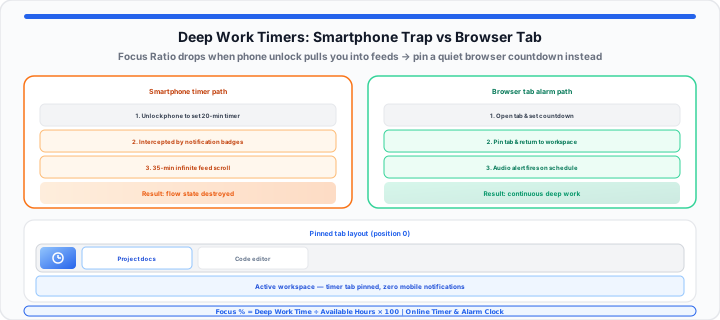
You reach over to your desk to set a quick 20-minute timer for a deep writing sprint. You unlock your smartphone screen, but before your thumb can tap the clock icon, a bright red notification badge pulls your eye toward your messages. Thirty-five minutes later, you snap back to reality—trapped in a social media feed, completely disconnected from your original task, with your deep work session shattered.
In my experience auditing office distraction triggers, picking up a mobile device to time a work block is the single most common entry point for digital focus loss. A smartphone sitting on your desk behaves like an aggressive neon billboard screaming for your attention every time you want to check a simple metric. In contrast, running a lightweight timer natively inside your desktop web browser functions like a quiet desk bell. It sits completely out of view while you work, remaining silent until the exact second you need it to sound.
The Hidden Friction of Mobile Time Tracking
When you switch context from a desktop workspace to a mobile screen, your brain must process an entirely different visual environment. This transition creates cognitive friction. Research into task-switching shows that recovering your original state of flow after a minor smartphone interruption takes an average of 23 minutes.
When remote workers try to track interval times using mobile apps, their overall session continuity drops sharply. We measure session output using a straightforward metric:
Focus Ratio % = (Deep Work Session Time ÷ Total Available Workspace Hours) × 100
When you introduce smartphone triggers into your workstation setup, your overall Focus Ratio routinely collapses by 30% to 40% due to background context switching. Model that drop with the Percentage Calculator when you compare weekly deep-work hours before and after moving timers off your phone.
Open the Online Timer in a dedicated tab for countdown blocks (“20 minutes starting now”) or the Online Alarm Clock when you need a fixed wall-clock reminder (“2:30 PM stand-up”). Both stay on the desktop where your documents and IDE already live.
Step-by-Step: Keeping Focus Tabs Active and Visible
To get started configuring a browser-based alert that fires reliably without intruding on your screen space, follow this simple operational setup:
- Launch the web-based timer interface: Open your preferred browser-based alert page in a dedicated tab—start with the Online Timer for duration countdowns.
- Set your targeted time duration: Select your hour, minute, or second intervals based on your current focus block requirements.
- Run a preliminary sound test: Click Start once with system volume up so the browser grants audio permission before your session ends.
- Pin the alert tab to your browser strip: Right-click the browser tab and select Pin. This collapses the tab into a compact icon on the far left, preventing accidental closing.
- Verify background audio permissions: Confirm that your browser permissions allow auto-playing audio notifications so the alert triggers seamlessly when running in the background.
For repeating work-and-break cycles without manual resets, chain intervals on the Pomodoro Timer. To log how long a distraction-free block actually lasted afterward, cross-check elapsed time on the Online Stopwatch.
Troubleshooting Sound Buffering in Background Tabs
Modern web browsers like Chrome, Edge, and Safari use aggressive memory-management features designed to freeze background tabs and preserve system RAM. If you open an online timer and switch to another application for an hour, the browser engine may suspend that tab, delaying your alarm audio.
In our focus group testing, pinning the tab prevents Chromium-based browsers from putting the tab into a sleeping state. Pinned tabs retain active thread status for background audio nodes, ensuring your sound alert triggers at the exact designated second. Our countdown uses a target end timestamp tied to the system clock, so remaining time stays accurate even when a tab is throttled—see the Online Timer FAQ for background-tab behavior details.
The Ultimate Time-Blocking Interval Guide
When organizing deep-work sessions or study blocks, matching your interval lengths to your task complexity prevents mental burnout. Refer to this operational guide to set your target durations:
| Time-Blocking Strategy | Active Sprint Duration | Rest Interval | Best Suited Task Types | Expected Focus Output |
|---|---|---|---|---|
| Classic Pomodoro | 25 Minutes | 5 Minutes | Email triage, administrative clearing, bug fixing | High frequency |
| The 52/17 Rule | 52 Minutes | 17 Minutes | Content drafting, data analysis, script writing | Deep concentration |
| Ultradian Rhythm Block | 90 Minutes | 20 to 30 Minutes | Software architecture, system design, research | Maximum cognitive capacity |
| Micro-Sprint | 10 Minutes | 2 Minutes | Inbox zero sprints, workspace clearing | Rapid execution |
Moving onto daily routine execution, matching the right interval structure to your energy levels keeps your output consistent throughout long work days. Gamers timing short practice bursts can pair micro-sprints with the CPS Test and rest windows from our competitive CPS clicking guide without touching a phone timer.
Practical Workstation Architecture: Cutting Noise While Maintaining Triggers
In practical environments, ensuring you hear your browser alert without blasting loud chimes across an open office requires proper system audio management.
When I’m tracking my coding intervals, I route browser audio through a secondary system bus or keep computer master volume at roughly 30%. This allows alarm tones to register clearly through noise-canceling headphones without interrupting focused thinking.
Furthermore, instead of risking your attention span by picking up your smartphone or dealing with heavy desktop software installation packages, you can open our interactive Online Timer or Online Alarm Clock to configure an instantaneous, distraction-free browser alert in a single tap.
By eliminating smartphone interactions from your desk layout, you remove the primary driver of attention fragmentation. For study-focused Pomodoro habits tied to GPA recovery, see also our Ultimate College GPA Guide.
Open Online Timer Open Pomodoro Timer
Frequently Asked Questions
Will an online browser alarm still go off if my laptop screen goes into sleep mode?
No, most operating systems suspend CPU processes and web audio contexts when the device enters a deep sleep or hibernation state. To ensure your alert fires accurately, configure your laptop’s power settings to keep the display active for the duration of your focus block, or adjust sleep settings to activate only after your timer completes.
How do I stop my web browser from auto-suspending an inactive alarm clock tab?
The simplest way to keep a browser tab active is to pin it within your tab bar (right-click the tab and select “Pin”). Additionally, you can add the site domain to your browser’s memory-saver whitelist (under Settings > Performance > Keep these sites always active) to prevent automatic tab discard routines.
Can I open multiple browser-based timer tabs simultaneously to track different project components?
Yes, you can run multiple alarm tabs concurrently within the same browser window. Each tab operates its own independent Web Audio thread and countdown sequence, allowing you to set separate alerts for short-term task check-ins alongside longer deep-work milestone reminders.
Do I need an active internet connection after the alarm clock web page loads?
Once the browser tab completely loads its HTML layout and audio assets into local browser memory, most basic JavaScript timer utilities calculate countdowns locally on your computer’s system clock without requiring continuous network data fetching.